Midjourney V7: Complete Guide to Creating Stunning AI Art in 2026
Master Midjourney V7 with this complete guide. Learn prompting techniques, new features like voice mode, and how to create professional AI-generated images.
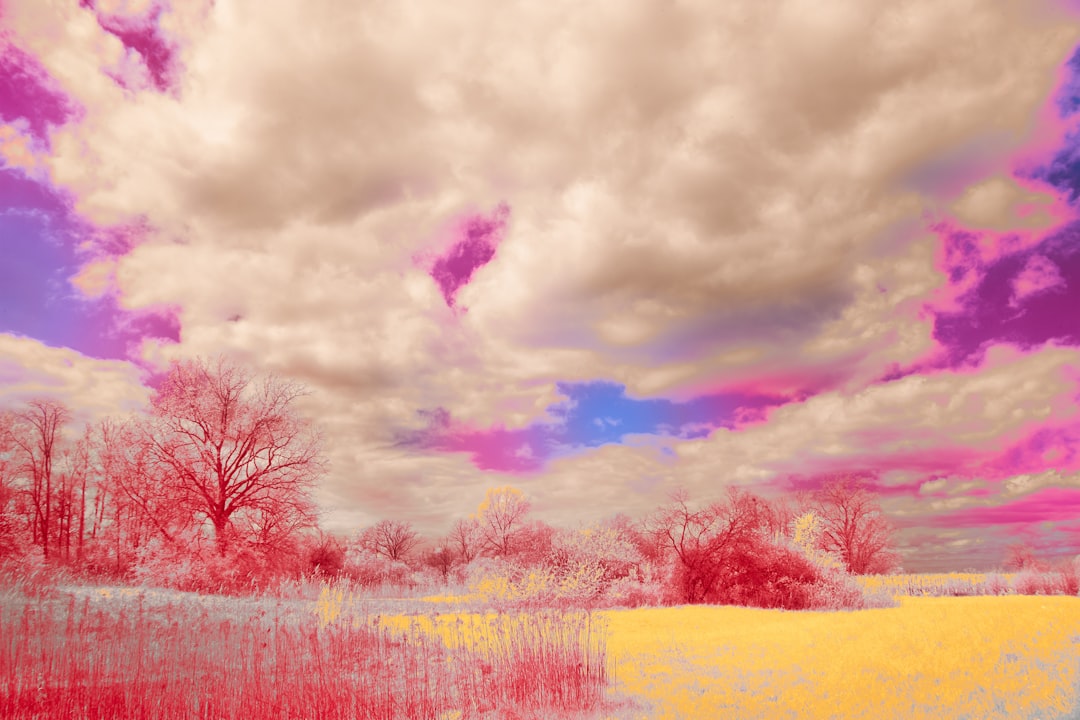
Midjourney V7 dropped with a completely new architecture, and it shows. The image quality leap is the biggest since V4 to V5.
After generating thousands of images with V7, I've figured out what works, what doesn't, and how to get results that actually look professional. This guide covers everything from setup to advanced techniques.
What's New in Midjourney V7
V7 isn't just an incremental update. The entire underlying system changed.
Major Improvements
Image Quality Textures are richer, details are more coherent, and the overall "AI look" is significantly reduced. Bodies, hands, and faces render more accurately than any previous version.
Text in Images V7 finally handles text reliably. Not perfectly, but you can actually include readable words in your images now.
Prompt Understanding The model interprets complex prompts better. You can describe multi-element scenes and actually get what you asked for.
Faster Generation Draft mode renders images at 10x speed for half the cost. Perfect for exploring ideas before committing to full quality.
Voice Prompting Think out loud and images generate as you speak. No typing required - just describe what you see in your mind.
New Features
Draft Mode Generate quick previews before committing credits to full renders. The quality is lower, but good enough to validate concepts.
Voice Mode Click the microphone and describe your vision verbally. The AI interprets your speech and generates images continuously as you talk.
Omni Reference (--oref) Maintain consistent characters or objects across multiple images. Upload a reference and your subject stays recognizable.
Enhanced Style Reference (--sref) Apply aesthetic styles from reference images. More accurate than V6, especially for maintaining color palettes and moods.
Personalization by Default V7 learns your preferences over time. After completing an initial quiz, images naturally trend toward styles you prefer.
What It Costs More
V7 uses twice the GPU time of V6. Practically, this means:
| Plan | V6 Images | V7 Images |
|---|---|---|
| Basic ($10) | ~200 | ~100 |
| Standard ($30) | ~900 | ~450 |
| Pro ($60) | Unlimited relax | ~900 fast |
If you're cost-conscious, Draft mode and mixing V6/V7 helps stretch your subscription.
Getting Started with Midjourney V7
Setup Requirements
- Subscription - No free tier exists. Minimum $10/month.
- Discord account - Still the primary interface
- Personalization quiz - Complete 200 image comparisons before V7 unlocks
The Personalization Process
V7 requires personalization. Here's what happens:
- Click the personalize button in Discord or web interface
- You'll see pairs of images
- Choose which you prefer (200 times)
- Takes about 5-10 minutes
- Your personal preferences are now baked into all V7 generations
This isn't optional - V7 won't work until you complete it.
Access Methods
Discord (Traditional)
- Join the Midjourney Discord server
- Go to any #newbie or #general channel
- Type
/imaginefollowed by your prompt - Wait for generation
Web Interface (Newer)
- Go to midjourney.com
- Sign in with Discord
- Type prompts in the imagine bar
- Browse and organize in a gallery view
The web interface is cleaner, but Discord offers more community interaction and quicker access to others' prompts for inspiration.
Prompting Basics
Good prompts make the difference between "meh" and "wow."
Prompt Structure
The basic formula:
[Subject] + [Setting/Environment] + [Style/Medium] + [Mood/Atmosphere] + [Technical parameters]Example:
/imagine a wise elderly wizard reading ancient scrolls, inside a candlelit tower library, oil painting style, mysterious and atmospheric, --ar 16:9 --v 7What to Include
| Element | Examples | Impact |
|---|---|---|
| Subject | person, animal, object | What's in the image |
| Action | running, contemplating, flying | Movement/pose |
| Setting | forest, city, abstract space | Environment |
| Style | photograph, watercolor, 3D render | Visual medium |
| Lighting | golden hour, neon, dramatic shadows | Mood enhancement |
| Camera | wide angle, macro, portrait lens | Perspective |
V7-Specific Prompting Tips
Be More Direct V7 understands plain language better. "A happy dog" works better than it did in V6.
Use Fewer Keywords The model handles context better. You don't need to stack style keywords as heavily.
Embrace Specificity V7 can handle complex multi-part prompts that would confuse V6:
A Japanese street food vendor in her 60s, cooking yakitori under paper lanterns, Kyoto alleyway at dusk, warm amber lighting, street photography, 35mm lens, slight motion blur on the smokeNatural Language Works You can write almost conversationally:
I want to see a cozy mountain cabin during a snowstorm, warm light glowing from the windows, smoke rising from the chimney, that feeling of being safe and warm while nature rages outsideParameters and Settings
Essential Parameters
Aspect Ratio (--ar)
--ar 16:9  (widescreen, landscapes)
--ar 9:16  (portrait, mobile wallpapers)
--ar 1:1   (square, social media)
--ar 4:3   (standard, general use)
--ar 3:2   (photography standard)
Version (--v)
--v 7      (current default)
--v 6      (previous, costs less)
--v 5.2    (older style)
Stylize (--s) Controls how "Midjourney" the image looks:
--s 50     (more literal interpretation)
--s 250    (balanced, default)
--s 750    (more artistic interpretation)
--s 1000   (maximum stylization)
Chaos (--c) Adds variation between the four generated images:
--c 0      (similar images)
--c 50     (moderate variation)
--c 100    (maximum variation)
V7-Specific Parameters
Style Reference (--sref) Apply the aesthetic from another image:
/imagine a forest scene --sref [image URL]Omni Reference (--oref) Keep subjects consistent:
/imagine portrait of this character in a library --oref [character reference URL]Personalization Weight (--p) Control how much your personal preferences apply:
--p 0      (ignore personalization)
--p 1      (full personalization, default)
Quality (--q) Affects detail level and cost:
--q 0.5    (half quality, half cost)
--q 1      (standard, default)
--q 2      (double quality, double cost)
Using Draft Mode
Draft mode is a game-changer for iteration:
- Enable draft mode in settings or prompt
- Generate at 10x speed, 0.5x cost
- Find concepts that work
- Regenerate winners at full quality
Perfect for exploring before committing credits.
Voice Prompting
V7's voice mode changes how you create.
How It Works
- Click draft mode toggle
- Click the microphone button
- Start talking about what you want to see
- Images generate continuously as you speak
- Stop when you see something you like
Tips for Voice Prompting
Think Out Loud Don't try to form perfect prompts. Stream of consciousness works:
"I'm thinking something with... a woman, maybe in a garden, no wait, more like a greenhouse, lots of plants, morning light coming through the glass..."
Iterate Verbally
"That's close but make the light warmer... more vintage feeling... actually add some dust particles in the light beams..."
Be Descriptive, Not Technical
"It should feel peaceful, like Sunday morning" works better than listing technical parameters
Watch and React The images update as you talk. React to what you see:
"Yes, that direction! More of that color palette. Maybe add a cat sleeping somewhere..."
Voice mode is particularly great for:
- Exploring without commitment
- Finding unexpected directions
- Working when typing is inconvenient
- People who think better verbally
Advanced Techniques
Consistent Characters with Omni Reference
Creating a character that appears across multiple images:
- Generate your character
/imagine portrait of a young woman with short blue hair and green eyes, cyberpunk style, neutral expression --ar 1:1- Pick your favorite
- Use it as reference
/imagine [same character] sitting in a neon-lit cafe, cyberpunk city visible through window --oref [paste URL from step 2]The character stays consistent while the scene changes.
Style Consistency Across Projects
Building a cohesive visual style:
- Create or find a style reference image
- Apply to all images
/imagine [your subject/scene] --sref [style image URL] --sw 100Style weight (--sw) controls influence:
- 50: Subtle influence
- 100: Strong influence (default)
- 200: Dominant influence
Inpainting and Editing
V7 allows editing specific regions:
- Generate an image you mostly like
- Use the vary (region) button
- Select the area to change
- Describe the change you want
Great for:
- Fixing hands
- Changing backgrounds
- Adding elements
- Removing distractions
Blending Multiple Images
Combine concepts from different images:
/imagine [URL 1] [URL 2] --blendOr with weights:
/imagine [URL 1]::2 [URL 2]::1 (URL 1 has twice the influence)Common Use Cases
Professional Photography Style
/imagine professional headshot of a confident businesswoman, neutral background, studio lighting, shot on Canon 5D Mark IV, 85mm portrait lens, shallow depth of field, editorial quality --ar 3:4Product Visualization
/imagine minimalist product photo of a ceramic coffee mug, morning light from window, wooden table, clean Scandinavian kitchen background, commercial photography --ar 4:5Fantasy Art
/imagine epic dragon perched on a mountain peak, storm clouds gathering, lightning in the distance, fantasy illustration, detailed scales, dramatic composition, cinematic lighting --ar 16:9Architectural Visualization
/imagine modern sustainable home, floor-to-ceiling windows, surrounded by forest, architectural photography, golden hour, symmetrical composition --ar 16:9Social Media Graphics
/imagine abstract flowing shapes in gradient of teal and coral, organic forms, modern design, suitable for background, clean aesthetic --ar 1:1For more AI art options, see our AI image generation guide and free AI image generators.
Troubleshooting Common Issues
Hands Still Look Wrong
V7 improved hands dramatically, but issues persist. Try:
- Don't mention hands specifically (often triggers focus that backfires)
- Use references with good hand poses
- Add "anatomically correct" for technical accuracy
- Generate more and cherry-pick
Text Isn't Readable
V7 handles text better, but for reliable text:
- Keep text short (1-3 words)
- Use quotes:
with text "HELLO" - Specify font style: "bold serif text"
- Generate multiple attempts
- Edit text in post-processing for critical uses
Images Look Too "AI"
Reduce the AI aesthetic:
- Lower stylize (--s 100)
- Add specific camera/lens mentions
- Reference real photographers
- Include "photograph" not "photo"
- Add film grain, noise, imperfections
Prompt Not Being Followed
If V7 ignores parts of your prompt:
- Put important elements first
- Break into simpler prompts and blend
- Use negative prompts (--no)
- Reduce competing elements
- Try different wording
Running Out of Credits
Stretch your subscription:
- Use Draft mode for exploration
- Generate at --q 0.5 for tests
- Use V6 for less critical images
- Batch similar concepts
- Don't regenerate entire sets - upscale only favorites
Midjourney vs Alternatives
vs DALL-E 3 (ChatGPT)
| Aspect | Midjourney V7 | DALL-E 3 |
|---|---|---|
| Quality | Higher for artistic work | Better for literal interpretations |
| Text | Good | Excellent |
| Accessibility | Discord/Web | Inside ChatGPT |
| Price | $10-60/month | ChatGPT Plus ($20/mo) |
| Style Control | Extensive | Limited |
| Best For | Creative/artistic | Quick generations, text |
vs Stable Diffusion
| Aspect | Midjourney V7 | Stable Diffusion |
|---|---|---|
| Quality | Consistent excellence | Varies with settings |
| Control | Parameter-based | Full model control |
| Learning Curve | Easier | Steeper |
| Cost | Subscription | Free (local compute) |
| Best For | Most users | Technical users, customization |
vs Adobe Firefly
| Aspect | Midjourney V7 | Adobe Firefly |
|---|---|---|
| Integration | Standalone | Adobe ecosystem |
| Commercial Rights | Yes | Clear licensing |
| Quality | Higher | Good, improving |
| Style | Artistic | Commercial-safe |
| Best For | Creative work | Adobe workflow, safe commercial |
vs Sora (Video)
If you need video, not images, see our Sora AI guide. For still images, Midjourney remains superior.
Pricing Deep Dive
Current Midjourney plans:
| Plan | Monthly | Yearly | Fast GPU | Relax GPU | V7 Images |
|---|---|---|---|---|---|
| Basic | $10 | $96 | 3.3 hr | None | ~100 |
| Standard | $30 | $288 | 15 hr | Unlimited | ~450 fast |
| Pro | $60 | $576 | 30 hr | Unlimited | ~900 fast |
| Mega | $120 | $1152 | 60 hr | Unlimited | ~1800 fast |
Which plan to choose:
- Casual users: Basic (100 images is plenty for experimentation)
- Regular creators: Standard (relax mode for unlimited quantity)
- Professionals: Pro (more fast hours, commercial volume)
- Heavy users: Mega (production workloads)
All plans include:
- Commercial usage rights
- Optional credit top-ups
- Private generation mode (paid add-on)
Best Practices
Do This
- Complete personalization thoughtfully (affects all future images)
- Use Draft mode to explore before committing
- Save your best prompts in a document
- Study others' work in the Midjourney gallery
- Iterate on promising generations
- Mix V6 and V7 based on needs
Don't Do This
- Don't stack keywords hoping something works
- Don't ignore aspect ratio for your use case
- Don't waste fast hours on exploration (use Draft/Relax)
- Don't expect perfect text every time
- Don't skip the personalization quiz
Getting Better Results
Study the Gallery
The Midjourney explore page shows what others create with their prompts visible. Spend time:
- Finding styles you like
- Noting effective prompt structures
- Understanding parameter usage
- Saving inspiration
Practice Deliberately
Set challenges:
- "Create a consistent character in 5 different settings"
- "Match this reference image's style"
- "Generate something usable in under 3 attempts"
Build a Prompt Library
Document what works:
### Cinematic Portrait
[subject], cinematic lighting, dramatic shadows, film grain, shallow depth of field, shot on Arri Alexa, 85mm anamorphic lens --ar 2.39:1 --v 7
Having go-to templates speeds up work significantly.
Related Resources
- AI Image Generation Guide - Complete overview of AI art
- Free AI Image Generators - No-cost alternatives
- AI for Content Creation - Using AI images in content
- Sora AI Video Guide - When you need video
- DALL-E and ChatGPT - Alternative image generation
- Best Free AI Tools - More creative AI tools